


Layers - AI Photo Editor
4.251.00 Reviews
App Specs
- Version
- 1.0.5
- Updated On
- License
- Free
- Downloads
- 100,000+
- Developer
- HITDEV AI
- Categories
- Photography
- Platform
- Android
Screenshots
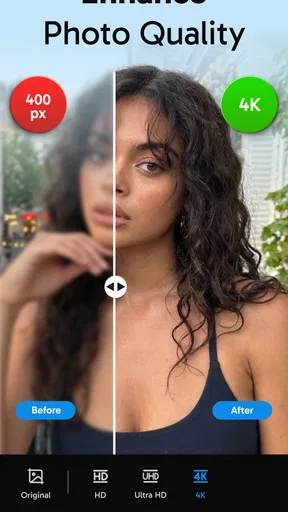
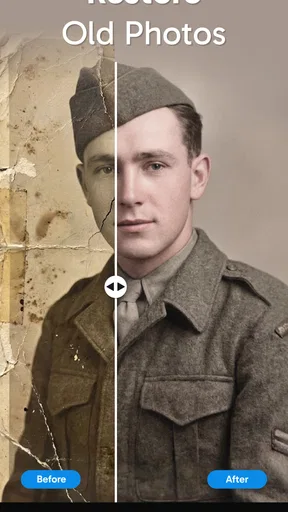
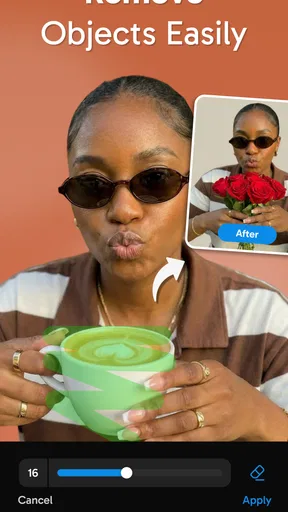
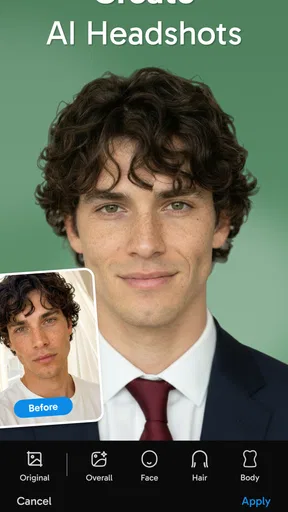
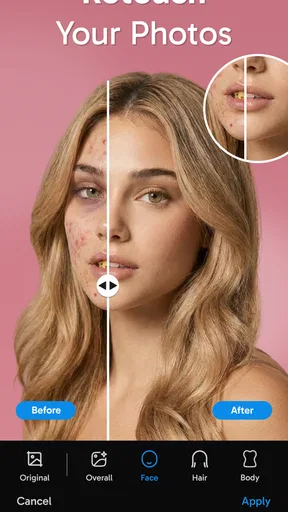
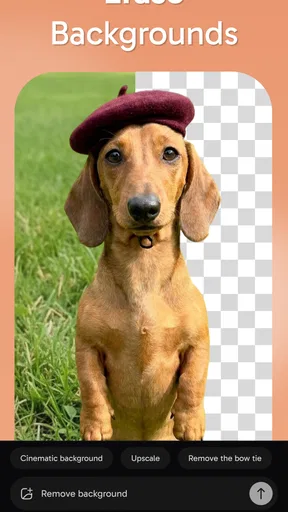

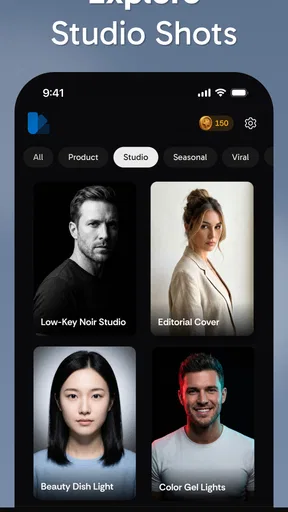
 Analysis by AppCompare
I tried Layers - AI Photo Editor as a casual photography app, and its appeal became clear in a shared-device situation. One person can use it for a quick portrait touch-up, another can turn several pictures into a collage, and someone else can experiment with hair effects without opening a more complicated desktop editor. It is the kind of tool that makes sense when the goal is to improve a picture in a few minutes rather than build a carefully managed editing project.
The app comes from HITDEV AI and is free to download, with optional in-app purchases priced from $5.99 to $39.99 per item. It is listed for Everyone, which fits its playful editing focus, but that label should not be confused with a promise that every generated result will suit every age or every household situation. I would still treat it as a creative camera companion, not as a supervised family platform.
How Layers fits into everyday shared photo editing
My favorite practical use is a small household moment: someone takes a group portrait before going out, notices that the lighting is uneven, and wants a result that looks nicer before sending it to relatives. A second person may want the same images arranged into a collage, while a teenager might be more interested in trying a different hairstyle effect on a selfie. Having retouching, beauty editing, collage work, and playful hair tools in one place reduces the need to pass the images through several separate apps.
That convenience matters on a shared tablet or phone. The editing style is approachable enough for a person who does not want to learn layers, masks, curves, or detailed color controls. I can imagine using it after a birthday gathering, during a trip, or while preparing a simple image for a family chat. The best results come when everyone agrees on the purpose first: a natural correction, a fun experiment, or a collage meant to tell a small story.
There is also a useful distinction between personal editing and shared editing. A quick beauty adjustment can be harmless when the subject is the person making the change, but editing another family member’s face or hair is a different matter. I would ask before changing someone else’s appearance, especially when the finished image may be shared outside the household. The app makes experimentation easy, so the social decision should happen before the edit, not after it.
For a shared device, I recommend saving finished images with clear names or placing them in the intended photo folder immediately. Otherwise, several similar versions can become confusing very quickly. This is not a criticism of the editing tools themselves; it is simply the kind of small organizational habit that makes a lightweight photo app easier to use when more than one person works on the same device.
What the editing experience is best at
The strongest part of the app is its broad, quick-edit approach. Retouching is useful when a photo needs a small cleanup rather than a complete makeover. Beauty tools suit portraits where the user wants to adjust the overall impression without spending time on individual color channels. The collage side is more practical for combining several memories into one shareable image, while hair effects provide a more playful reason to open the app.
Worth Reading Before You Choose

EA SPORTS FC Mobile 26 Is a Bigger Football Game, but It Takes Time

Flipboard Shows What News Apps Must Do Beyond the Feed

Switching to Android Auto Means Rethinking Your Driving Routine

Google Calendar Makes a Crowded Week Easier to Manage

Ludo King Makes the Most of the Minutes Between Plans

Baby Panda World Brings Quick Play to Modern Phones, but Its Game Library Feels Busy
I would approach each tool with a different standard. Retouching should usually be restrained, because small changes can preserve the person’s character. Collage work benefits from choosing images with a common mood or color balance. Hair effects are better treated as visual experiments than as reliable previews of a real haircut. Keeping those purposes separate helps avoid the common mistake of applying every available effect simply because it is visible.
The short description is “Layers,” and that wording hints at the app’s creative direction, but I would not approach it expecting a full professional compositing workstation. Its value is speed and accessibility. If I needed precise masking, detailed typography control, advanced color grading, or repeatable production templates, I would choose a more specialized editor. Layers is more comfortable as a flexible everyday tool than as the center of a serious design workflow.
Setup on a device used by several people
Because the app is intended for general photography use, the first setup decision in a household is not technical; it is about boundaries. I would decide who is allowed to edit whose pictures, where completed images should go, and whether playful results are for private amusement or for sharing. That conversation is especially useful when children and adults use the same phone or tablet.
The app is available for devices running Android 7.1 or later, and the current version is 1.0.5. On an older shared device, I would leave enough free storage for original photos and edited copies rather than treating the app as the only space that matters. Photo editing can create clutter even when each individual file seems small, and a family device tends to accumulate images from several people.
I also prefer to keep the original photo untouched. Before editing a meaningful family image, I would make a duplicate or confirm that the app is working on a copy. This gives everyone room to experiment without turning a quick retouch into a permanent change. It is a particularly useful habit when one person is comfortable with editing and another is still learning what each control does.
Account boundaries deserve attention too. I would not assume that a shared device automatically means shared ownership of every image or purchase. Each person should know which photos are private, which are available for editing, and who is responsible for approving a final version. If the device is passed between family members, I would also check the purchase screen carefully before confirming anything, since optional items can cost from $5.99 to $39.99 each.
This is where the free entry point is helpful but not the whole story. Someone can explore the basic experience without paying, yet a household should still agree on whether purchases are allowed. I would avoid handing the device to a child with an open payment path, not because the app is unsuitable for general audiences, but because creative experimentation can easily turn into an accidental purchase when several people share one screen.
Coordinating edits without stepping on each other’s work
When several people edit the same set of photos, a simple sequence works better than everyone changing files at random. I would first choose the images, then decide whether the main goal is retouching, a collage, or a playful effect. After that, one person can create a natural version while another makes a more imaginative version. Comparing those two outcomes is more useful than producing a dozen nearly identical edits.
A good household workflow is to keep one untouched original, one conservative edit, and one experimental copy. The conservative version is the one most likely to be shared with relatives or used as a profile image. The experimental version can include stronger beauty changes or hair ideas without putting the original memory at risk. This three-copy approach is a practical way to use the app’s range without confusing fun with accuracy.
Collages need a little coordination of their own. I would choose the layout only after selecting the story the images should tell. For example, a sequence from arrival, meal, and departure usually feels more coherent than a random collection of the sharpest faces. If the collage is intended for a group chat, I would inspect it at a smaller size before sharing; tiny faces, busy backgrounds, or excessive decoration can become hard to read on a phone.
Retouching also benefits from a second opinion, but that does not mean every edit needs a committee. I would ask the person pictured whether the result still looks like them. This is particularly important with beauty editing, where the editor may focus on smoothness while the subject cares more about expression, skin texture, or recognizable features. A quick check can prevent an awkward family conversation later.
Hair effects are best used as a discussion starter rather than a decision-maker. They can help someone imagine a general direction, but I would not treat the result as a precise forecast of how a real cut or color will appear. Hair shape, lighting, face angle, and image quality all influence the impression. For a genuine salon decision, I would use the effect as one playful reference and seek more reliable advice elsewhere.
Age, trust, and responsible sharing
The Everyone rating makes the app approachable for a broad audience, and the creative tools are easy to understand at a basic level. Still, age suitability in a household involves more than the label. A child may enjoy making collages or trying a silly hairstyle, while an adult should explain why changing someone’s face without permission is not automatically funny. The app can support creativity, but it cannot replace that guidance.
I would also set a clear rule about sharing edited portraits. A funny result made for private use is different from an image posted publicly or sent to a large group. Before sharing, the person in the photo should have a chance to approve the final version. This matters even more when the edit changes appearance in a way that could embarrass the subject or invite unwanted comments.
Trust is easier to maintain when the household treats edits as versions rather than corrections to a person. Calling one file “the playful version” and another “the natural version” keeps the conversation neutral. It also helps younger users understand that a beauty tool is an artistic option, not a measure of how someone is supposed to look.
For private family photos, I would be deliberate about which images are selected in the first place. A shared device may contain school pictures, travel documents, personal portraits, and unrelated images from several users. I would avoid opening a general photo picker in front of a child or guest without checking what is visible, and I would select only the pictures needed for the current edit. That small precaution is more valuable than rushing through the process.
The same care applies to purchases. Since the app is free but offers paid items, adults should explain whether the app may be used only with free tools or whether purchases require permission. On a device used by children, I would make that rule explicit before the first editing session. The goal is not to make the app feel restricted; it is to prevent confusion about ownership and spending.
Where it beats ordinary alternatives, and where it does not
Compared with the default photo editor on a phone, Layers offers a more playful range. A standard gallery editor is often better for quick cropping, rotating, or correcting brightness, but it may not bring retouching, collage creation, beauty adjustments, and hair experimentation together in the same creative space. If I am already browsing family pictures and want to make something more expressive, Layers feels more purposeful.
Compared with a dedicated collage app, its advantage is variety rather than deep layout control. A specialist collage tool may offer more templates, finer spacing decisions, or a workflow built entirely around multi-image compositions. I would choose that kind of app for repeatable invitations, polished event boards, or a large batch of similar designs. Layers is more appealing when the collage is only one part of a broader editing session.
Compared with a professional editor, the trade-off is obvious. Layers is less intimidating and probably faster for casual portraits, but a serious user may miss detailed control over selections, color, typography, and export decisions. I would not use it as my main tool for client work, brand graphics, or images that need exact visual consistency across many files.
Its AI-oriented features also need a sensible expectation. Artificially assisted editing can make an ordinary portrait more entertaining, but it does not guarantee that every result will look natural. I would inspect hair edges, facial proportions, and the relationship between the subject and the background before sharing anything. An effect that looks convincing in a thumbnail can seem noticeably artificial when viewed more closely.
The rating gives the app a 4.2 average from around 3.4 thousand ratings, and it has passed 100 thousand installs. Those figures suggest that it has found an audience for this accessible style of photo editing, but they do not tell me whether it matches a particular household’s expectations. The more important question is whether the user wants quick creative options or exact control over every visual detail.
Who should use it and who should look elsewhere
I would recommend Layers to someone who wants a friendly way to improve portraits, assemble casual collages, and try appearance effects without learning a professional editor. It is especially suitable for occasional users who value having several creative directions in one app. A family can also get good use from it if members agree on photo ownership, sharing, and purchase boundaries before passing the device around.
It is a weaker fit for photographers who need a carefully repeatable workflow. If you edit large batches, depend on precise color management, or need to preserve a consistent look across a collection, a more specialized application will likely save time. The same is true for designers who need dependable typography and composition tools rather than quick visual experiments.
I would also skip it as a sole tool for making decisions about real hairstyles or cosmetic changes. Its hair effects are entertaining and potentially useful for brainstorming, but they should not be treated as an exact consultation. Likewise, anyone who dislikes beauty filters or prefers completely natural portraits may find the app’s playful direction less appealing than a simple crop-and-light editor.
My household verdict
After using it as a photography app rather than expecting a professional suite, I found the balance easy to understand: Layers is about quick transformation, not exhaustive control. Its combination of retouching, beauty editing, collage creation, and hair effects gives a shared device several reasons to open it, and the free starting point lowers the barrier to trying it.
The main responsibility sits around the app rather than inside the editing buttons. Keep originals, separate personal images, ask before changing someone’s appearance, and agree on purchases. Those habits make the experience more comfortable for adults and younger users alike. The Everyone rating supports broad access, but respectful use still depends on the people holding the device.
My recommendation is simple: choose Layers when you want an approachable, playful photo editor for portraits and small household projects. Choose a standard gallery editor for basic corrections, a dedicated collage app for highly structured layouts, or a professional editor for precision work. For casual shared use, it earns a place on the device; for demanding image production, I would keep looking.
Pros
- AI tools make complex edits accessible to beginners.
- Supports creative photo transformations with minimal manual work.
- Useful presets can speed up routine editing tasks.
- Clean workflow makes it easy to compare edits with the original.
- Suitable for creating social-media-ready images quickly.
Cons
- AI results can vary depending on image quality and subject.
- Some advanced tools may require a paid subscription.
- Processing certain edits may take longer on older devices.
- Automatic effects can sometimes look unnatural or overprocessed.
- Privacy concerns may arise when uploading personal photos for AI editing.
FAQs for Layers - AI Photo Editor
What is Layers - AI Photo Editor, and what can it do?
Layers - AI Photo Editor is designed to help users enhance and transform images with artificial intelligence. Depending on the available tools, you can typically remove or replace backgrounds, retouch portraits, erase unwanted objects, apply creative effects, and make other visual adjustments without advanced editing skills. Its main appeal is combining automated AI results with simple controls for quick edits suitable for social media, personal projects, or everyday photo improvements.
Is Layers - AI Photo Editor free to download and use?
The app may be free to download, but some advanced editing tools, effects, exports, or AI features can require a subscription, one-time purchase, credits, or in-app payment. Before starting an edit, check the pricing screen and App Store or Google Play listing carefully, especially for free-trial conditions and automatic renewal. Availability of free features and paid plans can also vary by country and app version.
Does Layers - AI Photo Editor require an internet connection?
Many AI-powered editing functions require an internet connection because photos may be processed through cloud-based systems. Basic features, previously downloaded assets, or simple adjustments might work offline, but performance can differ depending on the tool. A stable Wi-Fi or mobile-data connection is recommended when uploading images or generating edits. Users should also consider data usage and avoid uploading sensitive photos on unsecured networks.
Are my photos and personal data safe when using Layers - AI Photo Editor?
Before using the app extensively, review its privacy policy and the permissions requested on your device. AI editors may need access to selected photos, camera functions, or storage, while some features may send images to remote servers for processing. Avoid uploading confidential documents or highly sensitive photographs unless you understand how files are handled, retained, and deleted. Privacy practices may change, so check the latest store information.
What phones are compatible with Layers - AI Photo Editor, and is it easy to use?
Compatibility depends on the operating system, device model, and minimum Android or iOS version specified in the official store listing. Newer phones generally provide faster previews, smoother AI processing, and more reliable exports, while older devices may experience delays or limited support. The interface is intended for casual users, although some AI tools may require experimentation to produce natural-looking results and accurate selections.


